

The send that made the products look soft
The catalog looked sharp on your screen. Then someone said the file was too big. You ran a compress tool, watched the megabytes fall, and hit send. The buyer opened page three. Fabric texture was mush. Jewelry edges were muddy. The prices were still readable. The products no longer looked like something you would pay for.
That is not a mailbox problem. That is a quality problem you chose while trying to fix a size problem. This piece is for marketers, freelancers, and small brands who ship photo-heavy catalogs and lookbooks. You will leave with one look-test, three honest doors, and a path that does not trade away the photos just to move the pages.
If the only issue is that Gmail or Outlook refused the attachment, the companion guide is Your PDF Is Too Big to Email. This article is the next question: when the file still “fits,” but you crushed it until the catalog looked cheap.
In this guide:
What compression actually does to catalog photos
Most “make my PDF smaller” tools attack the images first. Photographs in a catalog are continuous-tone. The usual weapon is JPEG (or JPEG 2000). Adobe’s Optimizing PDFs help states that JPEG and JPEG 2000 are typically lossy: the process permanently removes some pixel data. Quality for color images is offered at Minimum, Low, Medium, High, and Maximum. Adobe also warns that some compression methods can make images unusable in a print production workflow, and that you should experiment before changes you cannot discard.
Adobe’s PDF creation settings document the same five quality labels with a QFactor table: Minimum is the most aggressive (QFactor 2.40); Maximum is the gentlest of the lossy set (QFactor 0.15). Lower QFactor means higher quality and less compression. That is the dial most “compress PDF” apps are turning when they promise a smaller file.
| Quality label (Adobe) | QFactor | What it means for a photo catalog |
|---|---|---|
| Minimum | 2.40 | Smallest images; highest chance of blocky, soft product shots |
| Low | 1.30 | Still aggressive; fine for a draft, risky for retail photos |
| Medium | 0.76 | Common default; check fabric, jewelry, and small type |
| High | 0.40 | Milder loss; often usable for screen reading if you verify |
| Maximum | 0.15 | Least destructive of the lossy JPEG set; still not lossless |
Preservation guidance points the same direction. The Library of Congress Recommended Formats Statement for still image works prefers uncompressed masters where possible, and for acceptable technical characteristics lists lossless compression or lower compression ratios, with discrete wavelet transform (DWT) preferred over discrete cosine transform (DCT). JPEG is a DCT format. You do not need an archive department to hear the practical line: hard JPEG compression is a one-way door for product photography.
University repositories that publish image-heavy PDFs set a high bar on purpose. University of Michigan Deep Blue’s best practices for high-quality PDFs ask for color and grayscale images at least 400 pixels per inch with JPEG compression at Maximum image quality. That is the opposite of sliding the dial to Minimum so an email attaches.
One more trap: many catalogs are already JPEG inside the PDF. Distiller-style pipelines often decompress and recompress when you “optimize.” Adobe’s creation-settings notes say Distiller normally decompresses JPEG images and recompresses them according to the settings in effect, unless pass-through is on. A second lossy pass on retail photos is how a sharp InDesign export becomes a soft attachment overnight.
The one look-test before you send
Open the compressed PDF at 100% on a phone and on a laptop. Find the worst photo page — usually a fabric close-up, a metal edge, or a small logo on packaging. Ask: would I be comfortable if the buyer judged the product from this frame alone?
If yes, the smaller file is honest. If no, you did not shrink a PDF. You damaged the sales asset. Undo, go back to the original export, and pick a different door.
Also check one price table and one caption. Soft photos and broken type often arrive together when downsampling and heavy JPEG run in the same pass. Adobe’s Optimizer Images panel can downsample and recompress in one step. Either change can wreck a lookbook.
Do the test on the file you will actually send, not on a screenshot of the compress tool’s before/after slider. Those previews are optimistic. The buyer’s first open is the only preview that counts.
Real size pressure vs fake size pressure
Not every “this file is huge” moment is the same job.
| Pressure | What is actually required | Wrong fix |
|---|---|---|
| Mailbox attachment cap | A message that can leave and arrive | Crushing photos when they only needed a link |
| Buyer only needs to read | Pages that open and turn | A 4 MB PDF that looks like a cheap scan |
| Portal upload with a hard MB limit | A file under that number | Sending a reading link when the form only accepts a PDF |
| Print or press handoff | Full-quality pages for production | Any lossy “optimize for email” preset |
Fake size pressure is the most common trap for catalogs. Someone sees 35 MB, remembers that Gmail’s personal attachment limit is 25 MB, and compresses before asking what the recipient must do. If they must keep or upload the file, use the email size guide: mild compress, Drive or OneDrive, or split only as a last resort. If they only need to browse the season’s line, the megabyte number on your disk is not the deliverable. The reading experience is.
Real size pressure still exists. A retailer portal that refuses anything over 10 MB will not open your flipbook link. A print partner who asked for a PDF for plate-ready review needs the file, not a page-turn URL. Name the pressure out loud before you touch a compress slider. “We need this under 10 MB for their upload” is a different sentence from “Gmail complained, so I wrecked the photos.”
Three doors when the catalog is heavy
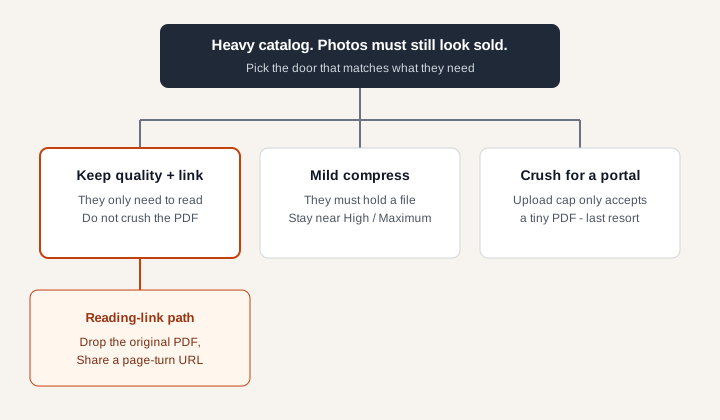
Door 1 — Keep full quality and send a reading link
Use it when the job is a brochure, catalog, lookbook, menu, or finished deck they will read and not file as the legal PDF. The email carries an address. The photos stay at the export you already paid a photographer for. This is the default door for client-facing catalogs.
A reading link also sidesteps the false choice between “attach 40 MB” and “ship mush.” The mailbox never sees the PDF. The buyer still turns pages. That is the same third door the email-size guide describes — here the emphasis is that you should not crush first “just in case.”
Door 2 — Mild compress so they can hold a file
Use it when they must download, print, archive, or attach the PDF themselves, and you are only a little over their limit. Stay near High or Maximum JPEG quality. Run the look-test. Prefer a Drive or OneDrive link to the original over a second, harder compress pass. Recompressing an already-JPEG catalog is how soft photos become softer.
If mild compress still fails the look-test, stop. Do not slide to Minimum and hope. Send the original from cloud storage and say so in the email. A clear Drive link beats a catalog that makes the product look defective.
Door 3 — Crush for a portal that will not budge
Use it only when a court, job, or vendor upload form demands a PDF under a fixed size and rejects a link. That is a file job, not a reading job. When not to use a flipbook covers that stop list. Accept that the upload copy may look worse than the master. Keep the master. Do not overwrite your only sharp export.
Label the crushed file in your own folder: brand-catalog-portal-upload-only.pdf. That naming habit has saved more than one team from accidentally emailing the damaged copy to a buyer the next week.
How to ship a reading link without crushing the PDF
Keep the original PDF. Do not run Minimum JPEG “for the web” first. Drop the file on the home page converter. Preview is drawn in your browser. Turn the photo-heavy spreads. If the pages look right, choose Share only when someone else should open them. Paste that link in the email with one plain sentence: here is the spring catalog.
- Export once from InDesign, Canva, or your layout tool at the quality you would show on a sales call. The InDesign and Canva guides cover that export if you are still in the source file.
- Skip compress tools aimed at “email size” unless Door 2 or Door 3 applies.
- Open pdftoflipbook.io. Drop the PDF. Guest share reaches 100 MB; an account reaches 300 MB. A 40 MB lookbook that bounced as an attachment still fits a share in most cases.
- Turn two pages. Check a fabric shot and a price. Page one alone, then a spread — if you see a printer’s handout grid, fix the PDF export before you share.
- Choose Share and copy the link. Preview was never public. Anyone with the URL can open the book, same class of exposure as an “anyone with the link” Drive file. Confidential drafts belong in the privacy guide, not on a public share.
If the book should live on a site page rather than in an inbox, use the Embed snippet after you have the publication — steps are in how to embed a PDF flipbook. Do not paste the public share URL into an iframe; that page refuses to be framed.
For wholesale and seasonal catalogs that already struggle as email attachments, the wider business case for a page-turn book is in flipbooks for business. This guide stays on the quality decision: do not destroy the photos on the way to a smaller number.
When hard compression is still the right tool
Compress hard when the other system will not take a link and will not take your full-size PDF. Job portals, some RFPs, and older vendor dropboxes are still file-shaped. In that case a small, ugly PDF that uploads beats a beautiful catalog that never arrives.
Compress gently when a partner asked for the file for print markup or offline archive and asked you to stay under a number. Tell them which quality setting you used. Offer the original on a drive in the same message.
A useful middle path for agencies: keep three artifacts. Master export (untouched). Client reading link (from the master). Portal upload (crushed, clearly named). Mixing those three into one overwritten file is how soft photos escape into the sales thread.
Do not compress as a habit every time you email a catalog. Habit is how a brand ends up judged by its softest JPEG pass. Size limits and reading links are different jobs. Treat them that way.
The short version
- Lossy JPEG in a PDF is a permanent quality cut — Adobe documents that plainly.
- Run the look-test on the worst photo page before you send.
- If they only need to read, keep the original and send a reading link.
- Mild compress or a drive link when they must hold the file; crush only for a hard upload cap.
- Never overwrite your only sharp master with the crushed copy.