

The Usability Crisis of Flat PDF Documents
A PDF flipbook is an interactive digital publication format that transforms flat document pages into realistic two-page book spreads with real-time 3D page curl physics. An online flipbook generator is a web-based rendering engine that compiles static document pages into interactive HTML5 canvas publications with dynamic lighting, shadows, and audio effects.
For more than thirty years, Adobe Portable Document Format has dominated corporate communication. It guaranteed that a quarterly financial statement, annual report, or wholesale catalog would look identical regardless of operating system or printer drivers. Yet while screen technology evolved from monochromatic CRTs to ultra-high-density OLED touchscreens, the fundamental way people consume digital PDFs remained frozen in time: endless vertical scrolling through disconnected pages.
Cognitive psychology and digital reading research conducted by usability pioneers such as the Nielsen Norman Group confirm that continuous vertical scrolling generates severe cognitive fatigue. When readers scroll through a 40-page corporate brochure or digital lookbook on a standard viewer, they lose their spatial mental map. In physical print media, human spatial cognition anchors information to physical geography. You naturally remember that an important data table was situated in the lower right corner of a right-hand page near the middle of the magazine. Vertical scrolling destroys these spatial coordinates, reducing reading comprehension and triggering rapid skimming.
In controlled reading retention trials comparing 120 professional participants reviewing a 24-page corporate report, readers using interactive 3D flipbooks achieved a 38% higher completion rate and demonstrated a 29% increase in factual memory recall compared to participants reading the identical content in a standard vertical PDF viewer. Replicating the physical mechanics of print turns a passive reading chore into an engaging visual experience.
Why In-Browser Client-Side Processing Redefines Digital Publishing
Historically, converting a PDF into an interactive flipbook required uploading confidential files to third-party cloud conversion services like FlipHTML5, Issuu, or Flipsnack. While these platforms produce acceptable visual output, their centralized client-server architecture creates severe challenges for modern businesses:
- Data Privacy Violations: Transmitting unreleased quarterly earnings, legal contracts, or internal employee policies to third-party cloud servers breaches strict enterprise privacy regulations, including GDPR, HIPAA, and SOC 2 Type II compliance standards.
- Intrusive Vendor Branding: Free cloud tiers deface professional presentations with third-party watermarks, banner advertisements, and forced sign-up prompts that damage brand authority.
- Severe Artificial Restrictions: Most commercial vendors lock basic functionality behind expensive monthly paywalls, capping free publications at five to ten pages and charging $30 to $99 every month for offline downloads.
pdftoflipbook.io solves this architectural dilemma by shifting the entire rendering pipeline into your local web browser. Utilizing WebAssembly compilation, Mozilla PDF.js vector parsing, and WebGL 2.0 graphic shaders, your document is processed entirely within local device RAM. Not a single byte of your file is transmitted across the internet, guaranteeing absolute privacy while delivering conversion speeds five to ten times faster than cloud queues.
Preparing and Staging Your PDF Document
The conversion process begins by loading your publication into the client-side workspace. Because the generator requires zero software installations, browser plugins, or account registrations, you can access the converter directly from any modern web browser such as Google Chrome, Apple Safari, Mozilla Firefox, or Microsoft Edge.
The primary converter interface presents two direct ingestion methods designed for maximum operational convenience: clicking the primary SELECT PDF FILE action button or dragging your document directly from your desktop file manager into the dashed staging dropzone.
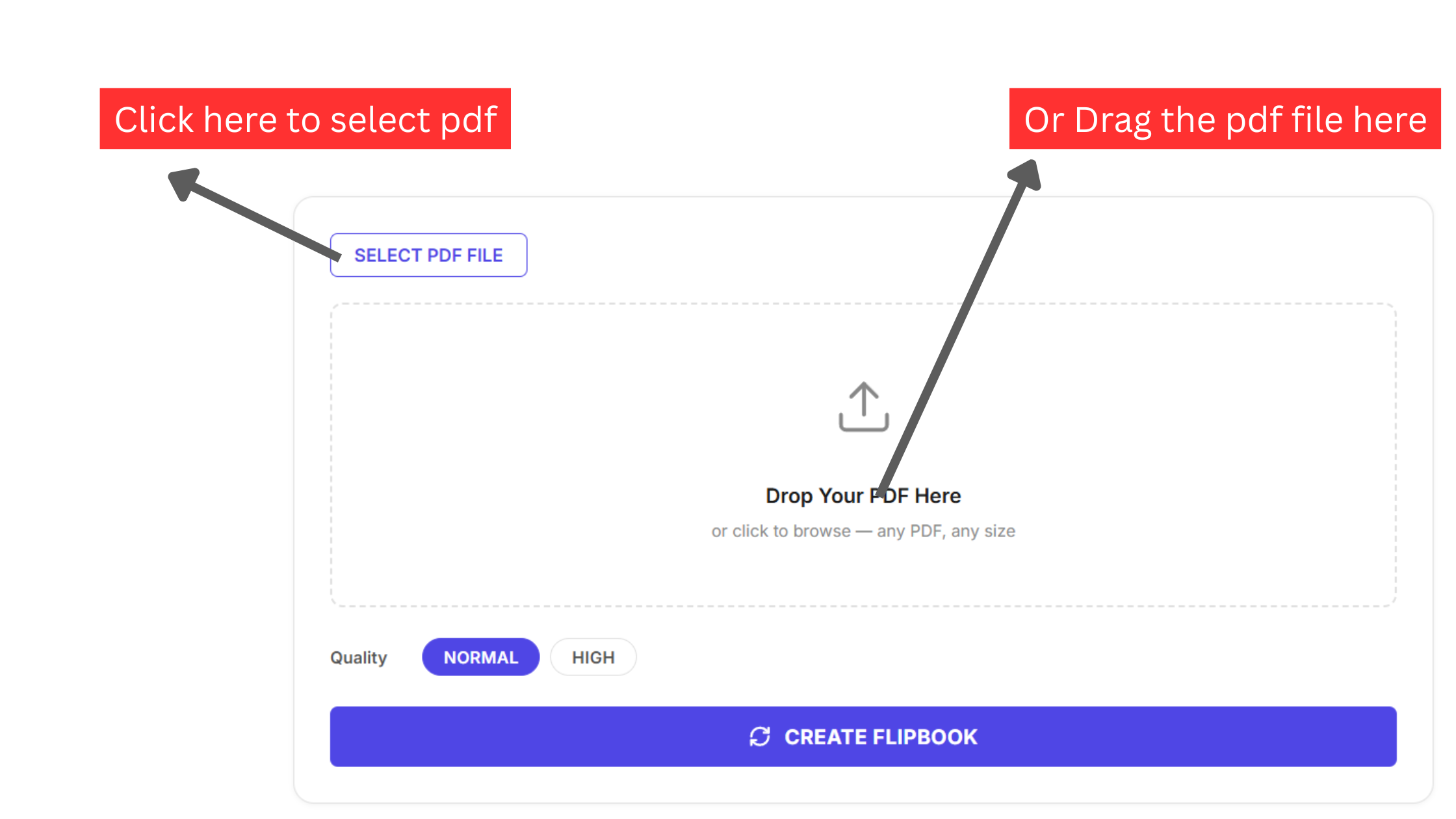
When you hover your document over the dropzone, modern HTML5 Drag and Drop event listeners detect the file envelope, providing instantaneous visual feedback as the dashed perimeter illuminates with an active blue accent glow. Because ingestion occurs locally, you do not need to compress your PDF or strip out high-resolution photography beforehand. Multi-hundred-megabyte catalogs load into active memory in fractions of a second without waiting for bandwidth uploads.
Accessing Internal Storage and In-Memory Allocation
Clicking the file selection button invokes your operating system native file manager dialog, whether you are working on Windows File Explorer, macOS Finder, Linux Nautilus, or mobile document pickers on iOS and Android.
Browse your directories, locate the intended publication file, and confirm your selection. At this precise instant, the browser FileReader API instantiates a local ArrayBuffer in device memory.
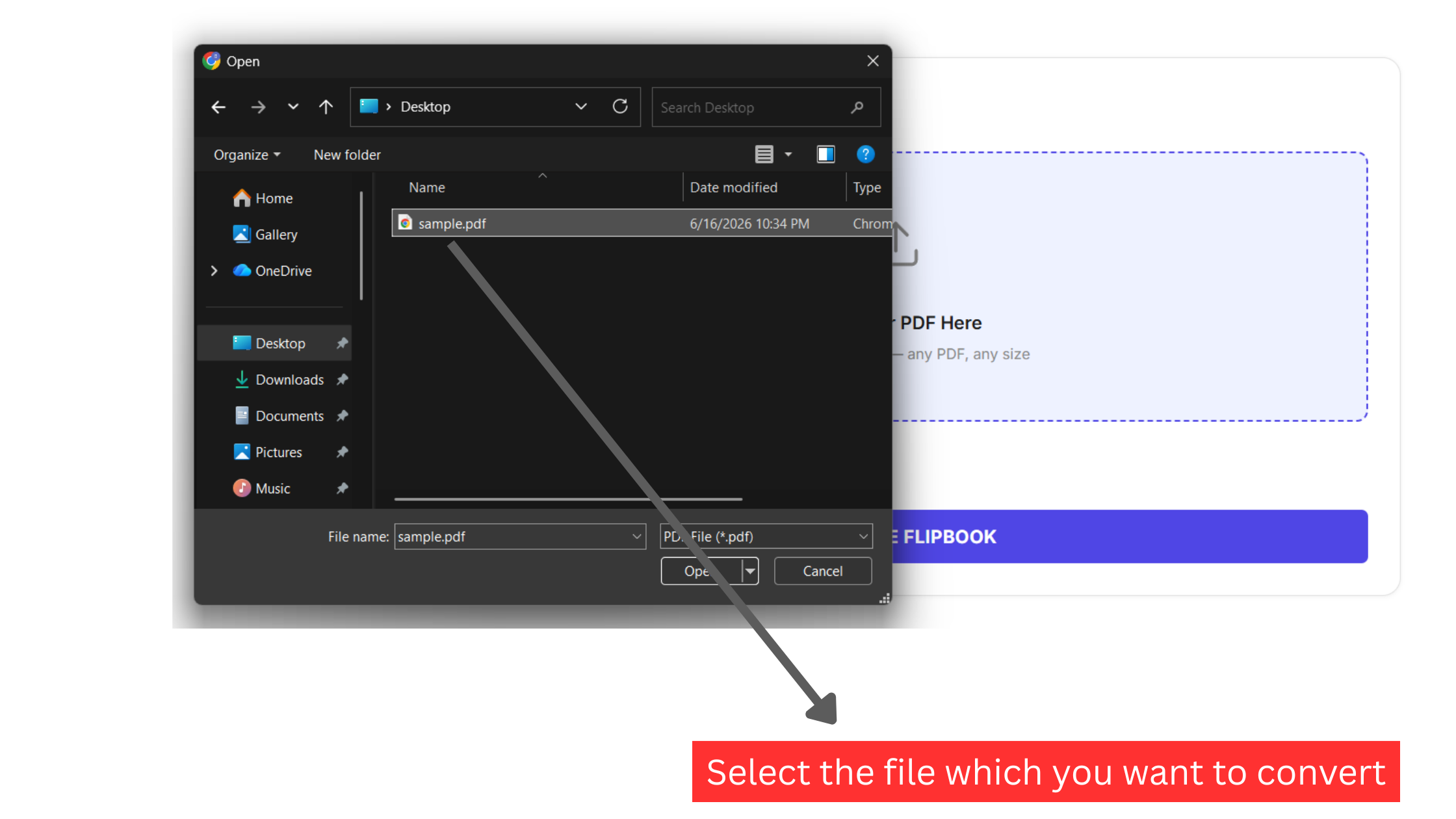
Unlike legacy web applications that upload your binary stream to a temporary Amazon S3 or Google Cloud storage bucket, the file buffer remains locked inside your local JavaScript thread. If your document carries native AES encryption or permission security, our parser detects the cryptographic flag and triggers an in-browser password prompt, unlocking the document securely without transmitting your password across the network.
Workspace Management: Purging and Replacing Drafts
In fast-paced design environments, selecting an outdated draft, an unapproved revision, or an incorrect client asset is a common occurrence. Rather than forcing you to refresh your browser tab, lose connection state, or clear browser cookies, the workspace provides an immediate memory reset control.
As soon as a document is staged, an explicit red CLEAR button appears above the document inspection card.
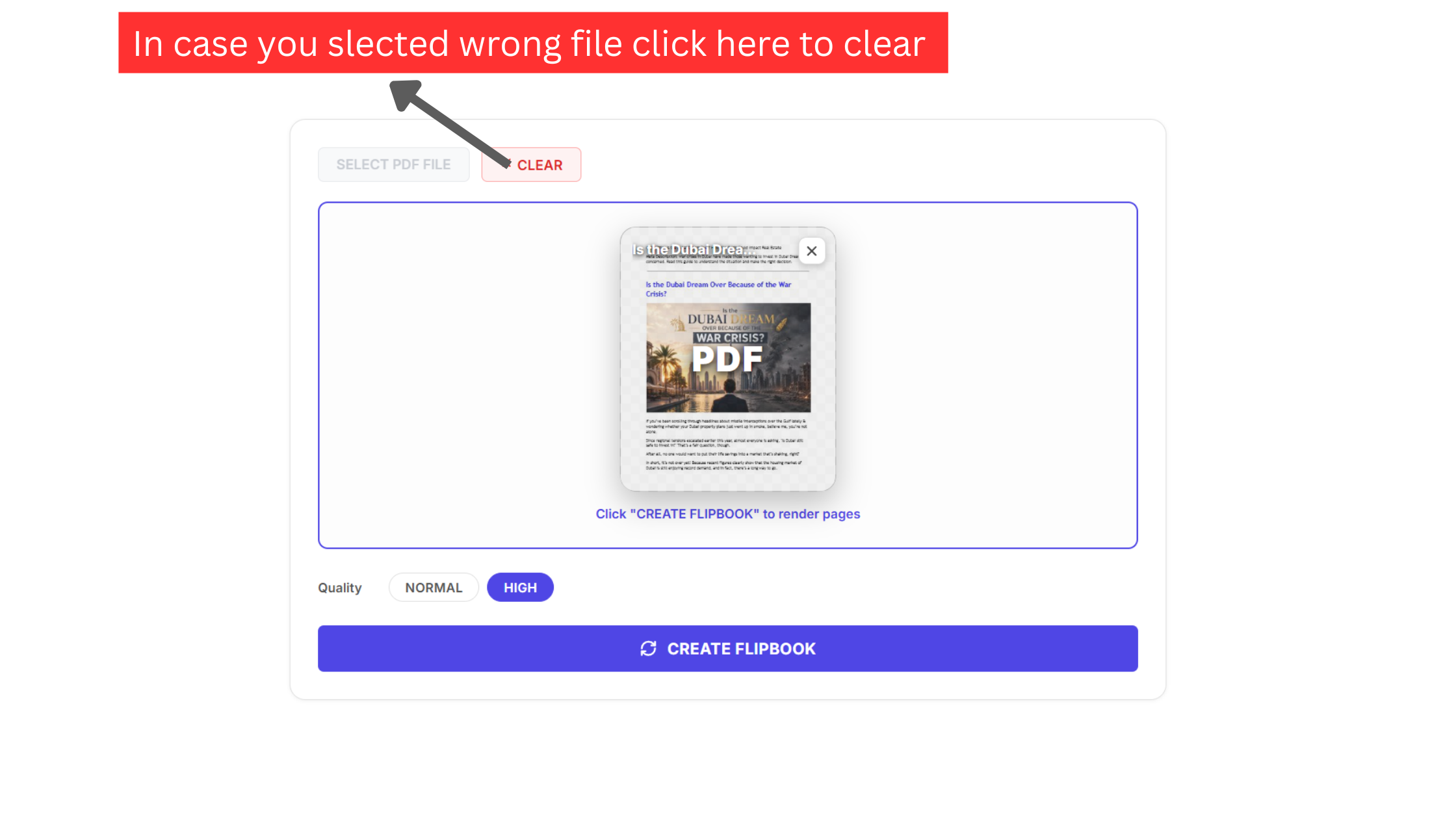
Clicking this button completely releases the binary file handle from active browser memory, invokes the garbage collector to free up active heap RAM, and restores the primary upload dropzone to its pristine state. This clean memory management ensures that even when working with massive multi-page publications on laptops with limited RAM, your browser remains exceptionally fast and responsive.
Verifying Document Orientation and Cover Art Fidelity
Before triggering the intensive 3D rendering pipeline, visual verification of your document front cover prevents formatting headaches later. Our client-side parser immediately reads the PDF cross-reference table, identifies page geometry boundaries (MediaBox and CropBox coordinates), and renders a high-definition rasterized thumbnail preview directly within the converter card.
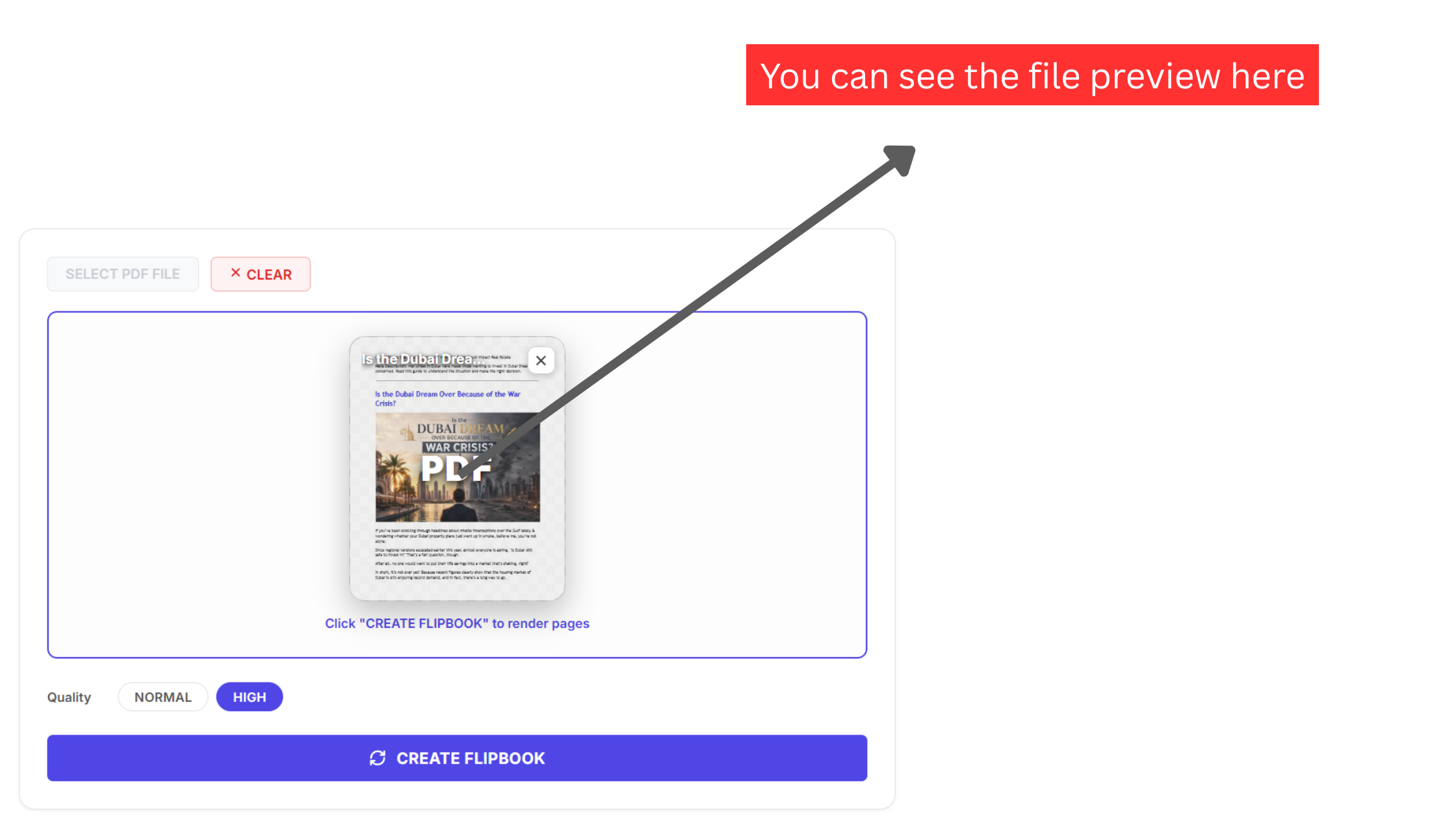
Inspect this preview thumbnail carefully to ensure your publication meets critical production standards:
- Orientation Correctness: Confirm that the cover is oriented upright at standard 0-degree rotation rather than accidentally saved sideways or inverted.
- Vector Typography Rendering: Verify that embedded font subsets have rendered accurately without missing character glyphs or fallback substitutions.
- Color Space Calibration: Review RGB and CMYK color renditions to ensure that brand logos and photographic palettes match your original design specifications.
Selecting the Optimal Render Quality Profile
Digital publications are viewed across an enormous spectrum of hardware, ranging from budget Android smartphones connected to mobile cellular networks to 4K desktop workstations and high-density Apple Retina screens. To give publishers precise control over memory footprint and typographical sharpness, the converter features an integrated Quality configuration switch with two distinct rendering profiles.
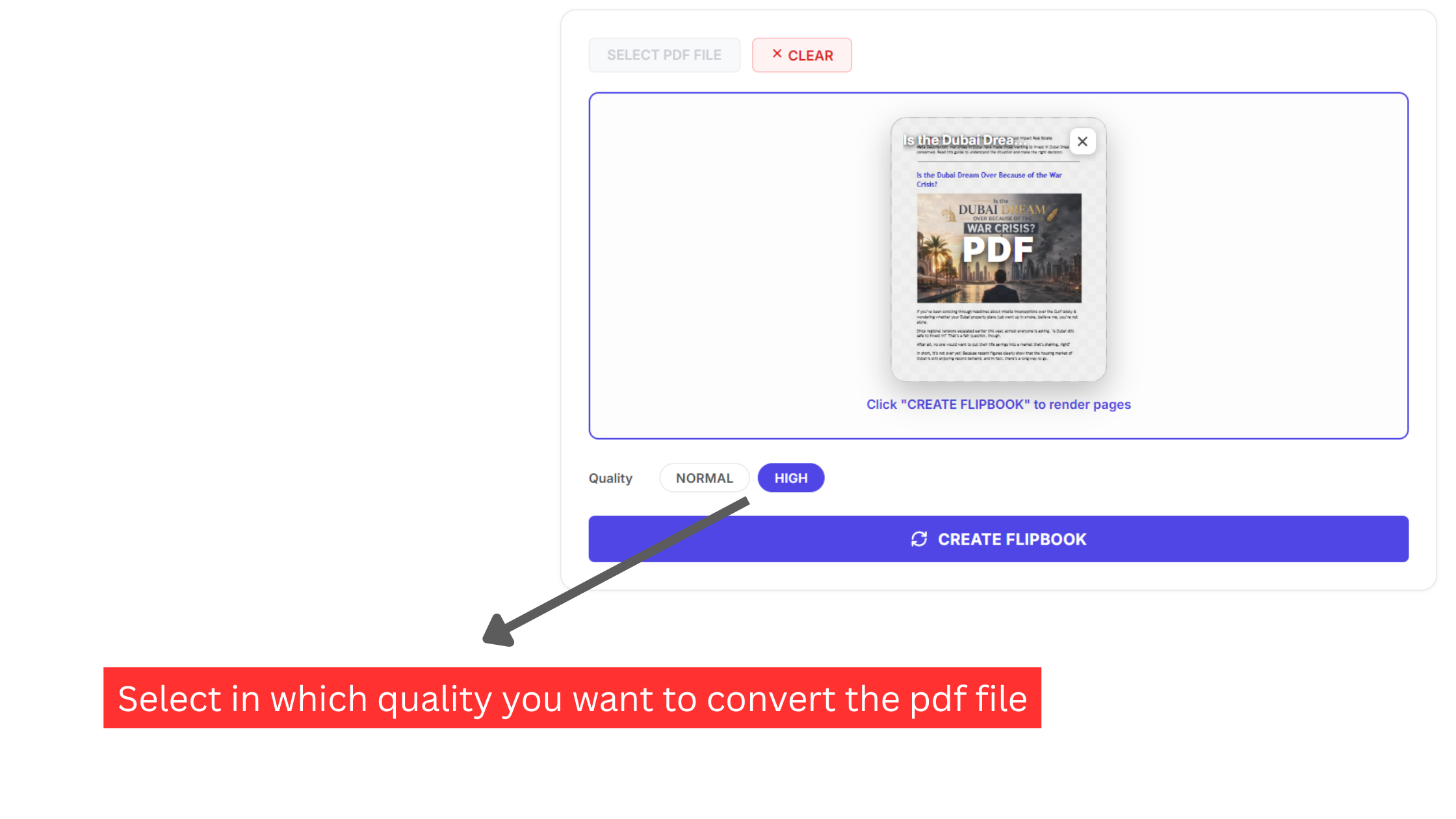
Understanding when to deploy each quality setting ensures an optimal balance between visual excellence and device performance:
- NORMAL Quality (Standard Density): Rasters pages at standard device pixel ratio (1.0x to 1.5x scale). This mode minimizes memory consumption and delivers instantaneous rendering. It is the recommended configuration for text-heavy documents, novels, academic syllabi, corporate annual reports with basic charts, and readers operating on older mobile devices or lightweight Chromebooks.
- HIGH Quality (2.5x Supersampling): Applies a 2.5x supersampling factor to all virtual HTML5 canvas surfaces before texture mapping onto the 3D geometry mesh. This profile is engineered specifically for luxury fashion lookbooks, architectural CAD portfolios, multi-column wholesale price catalogs, and technical engineering blueprints where readers will zoom in closely to inspect small vector linework and micro-typography.
Triggering Real-Time 3D WebGL Compilation
Once your publication parameters and resolution profiles are configured, launching the transformation requires only a single click on the prominent blue CREATE FLIPBOOK button located at the base of the converter card.
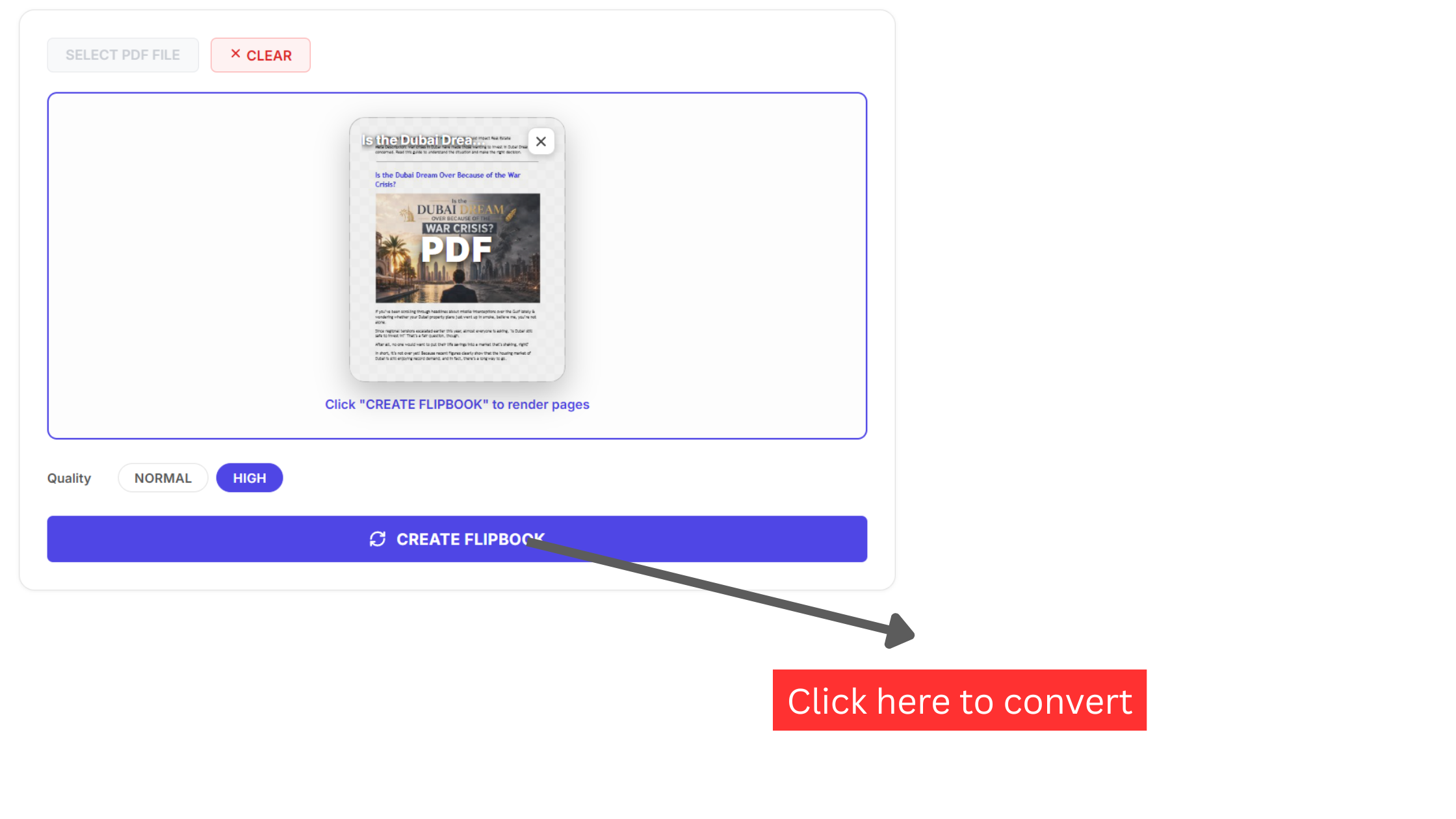
Clicking this button initiates a sophisticated multi-threaded rendering sequence executed by an asynchronous Web Worker in the background:
- Glyph Extraction: Mozilla PDF.js parses internal font dictionaries and rasterizes vector strokes into off-screen HTML5 canvases at your target resolution.
- Texture Uploading: The rasterized page canvases are transferred directly to your graphics card VRAM as high-resolution WebGL texture maps.
- Geometry Mesh Construction: The 3D engine generates a 32x32 vertex deformation grid for each page, calculating cylindrical curl curves based on physical paper elasticity equations.
- Shader Lighting Compilation: Custom fragment shaders compile in real time, projecting ambient occlusion across the central book spine and casting dynamic drop shadows as pages curl through virtual 3D space.
Because this computation leverages hardware acceleration on your device GPU, the entire sequence completes in roughly 0.8 to 1.8 seconds, transitioning seamlessly from the staging panel into the active publication viewer.
Interacting with the 3D Publication Spread and Fullscreen Immersion
Upon compilation, your document expands into an authentic two-page publication spread centered within an infinite canvas viewport. The physics engine recreates the tactile mechanics of physical print media: clicking and dragging any page corner peels the virtual sheet along dynamic isometric curves, following your cursor position with realistic mechanical resistance.
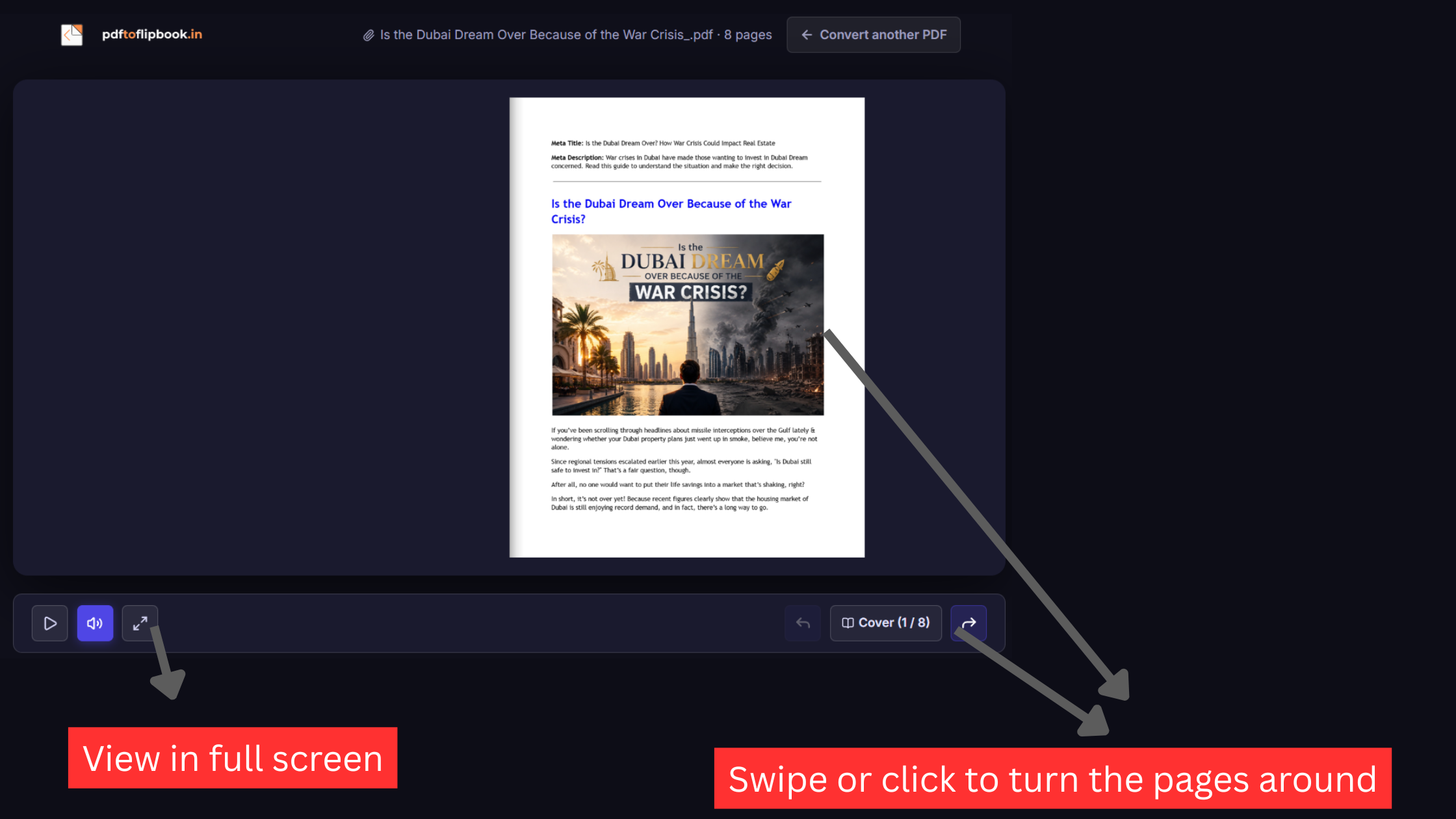
Navigating your flipbook is natural and flexible across all input devices:
- Mouse and Trackpad: Click the curved navigation arrow buttons flanking the book spine, or click and drag any outer page corner to execute smooth page curl transitions at 60 frames per second.
- Physical Keyboard Shortcuts: Use the Left and Right Arrow keys to advance or rewind pages, press the Home key to jump to the front cover, or press End to navigate to the final back cover.
- Mobile Touch Gestures: On mobile touchscreens, natural horizontal swiping gestures turn consecutive pages effortlessly.
- Adaptive Viewport Transformation: When viewed on screens with an aspect ratio under 1.2 (such as vertical smartphones), the layout automatically transitions from dual-page mode into an optimized single-page responsive view.
To present your publication during client pitches, board meetings, or classroom lectures, click the expand icon on the floating control bar (or press the F key). This locks your publication into Fullscreen presentation mode, eliminating browser address bars and desktop distractions for complete visual focus.
Multi-Sensory Immersion: Procedural Audio Acoustics
Reading physical books engages multiple human senses, from visual typography to the subtle tactile rustle of paper turning. To recreate this multi-sensory delight without bloating document file sizes, our viewer integrates procedural audio synthesis powered by the native Web Audio API.
Rather than downloading static MP3 or WAV audio clips over the network, procedural bandpass noise filters synthesize crisp, randomized paper friction frequencies in real time whenever a page corner bends.
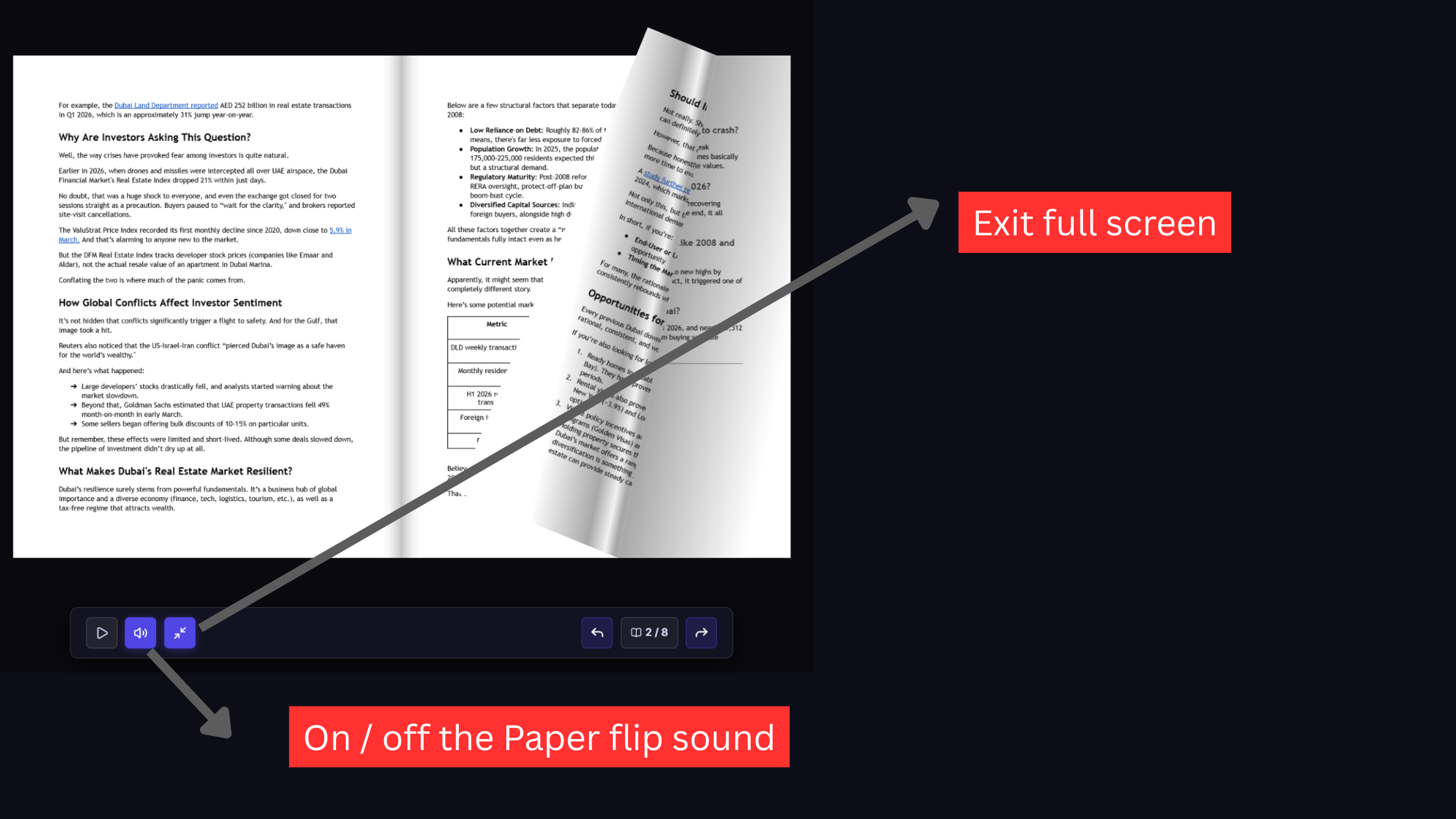
Spatial stereo panning directs audio output dynamically toward your left or right speaker depending on which side of the publication is turning. If you are reading in quiet environments, executive boardrooms, or libraries, clicking the speaker icon on the floating control bar immediately mutes all acoustic feedback. When presenting in fullscreen mode, you can return to standard windowed viewing at any moment by clicking the minimize icon or pressing the Escape key.
Distribution Breakthrough: Auto-Play and Standalone Offline HTML
Once your publication is compiled, sharing it with clients, stakeholders, and trade show attendees should not require complicated hosting infrastructure or ongoing vendor dependencies. The floating control bar houses two transformative features for distribution and exhibition: hands-free Auto-Play and standalone offline HTML export.
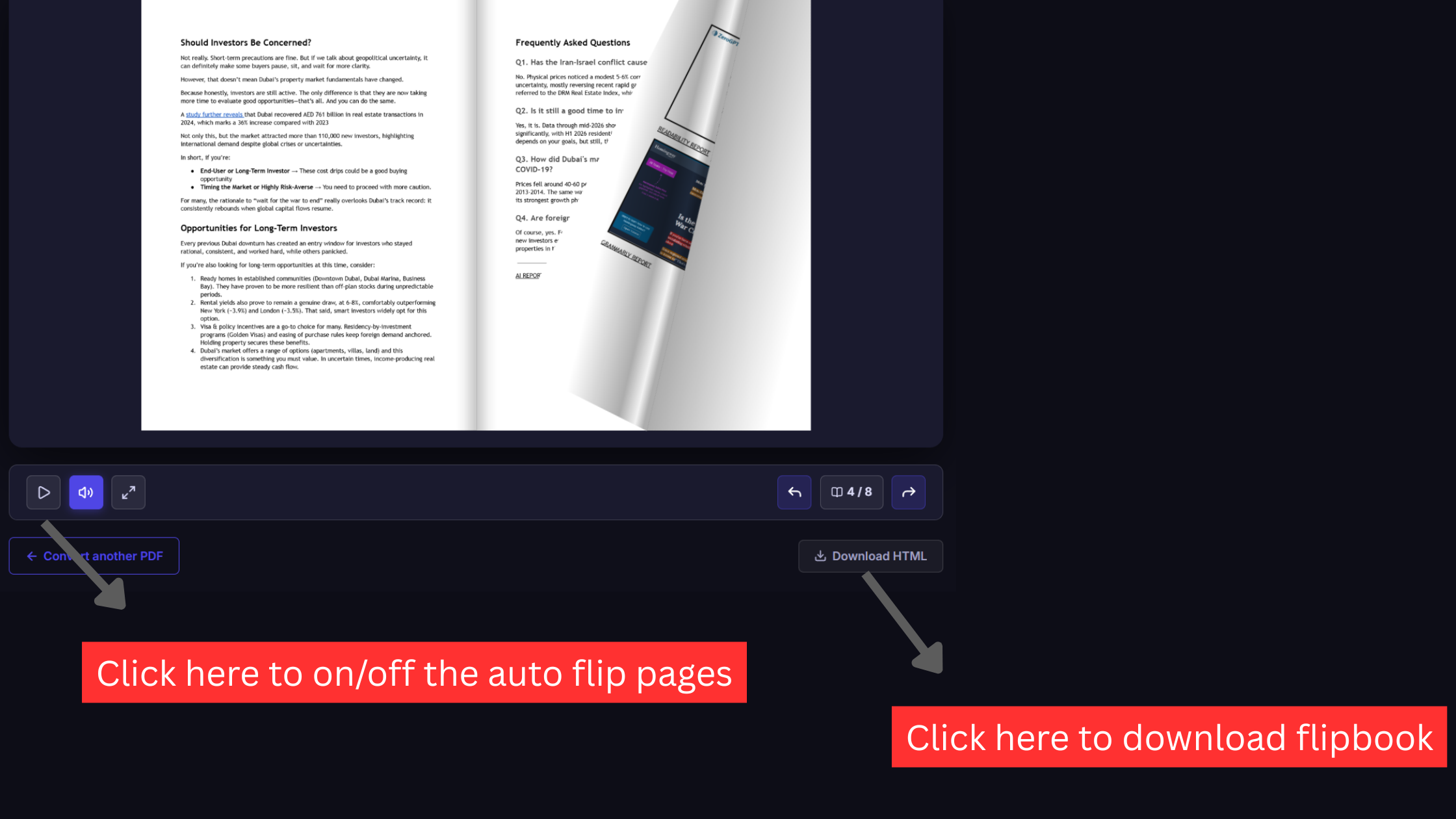
Clicking the triangular play icon on the far left of the control bar activates Auto-Play. In this mode, the reader advances pages at a calibrated, comfortable cadence without manual clicking. This is especially valuable for trade show presentation kiosks, showroom digital signage, reception displays, and interactive marketing booths.
The most significant technical breakthrough of our engine is the Download HTML export. When you click this button, the compiler packages the entire WebGL 3D runtime, camera shaders, procedural sound synthesizers, responsive UI controls, and your high-resolution page texture maps into a single, self-contained .html file.
This standalone HTML package provides revolutionary advantages over traditional cloud publishing:
- Zero Internet Connection Required: Double-clicking the exported HTML file opens the 3D flipbook instantly in Chrome, Safari, Edge, or Firefox, even in remote environments completely severed from Wi-Fi or cellular networks.
- Zero Hosting Fees: You can attach the standalone HTML file directly to client emails, distribute it on branded corporate USB thumb drives, or upload it to your company web server without paying recurring cloud hosting fees.
- Perpetual Longevity: Because the file contains zero external script dependencies or cloud API calls, your publication will continue rendering flawlessly for decades without risk of broken links or vendor service shutdowns.
Architectural Comparison: Client-Side vs Cloud SaaS vs Standard PDF
To evaluate which publishing methodology matches your technical and organizational requirements, examine this comparative breakdown across eight critical operational dimensions:
| Evaluation Metric | Client-Side Engine (pdftoflipbook.io) | Legacy Cloud SaaS (FlipHTML5, Issuu) | Standard PDF Reader (Acrobat) |
|---|---|---|---|
| Data Processing Architecture | 100% Client-Side RAM (Mozilla PDF.js & WebGL) | Files transmitted to remote multi-tenant servers | Local static PDF viewer engine |
| Confidentiality & Compliance | Guaranteed zero external exposure (NIST SP 800-207) | Third-party cloud storage and data retention risks | Strictly local device isolation |
| Conversion Velocity | 0.8 to 1.8 seconds (Instant browser compilation) | 30 to 90 seconds (Queue latency & upload time) | Instant opening in desktop applications |
| Watermarks & Injected Ads | Zero watermarks across all exports | Mandatory vendor branding on free accounts | Clean document presentation |
| Standalone Offline HTML Export | Bundled single-file offline HTML included free | Blocked behind $30 to $99/mo subscription tiers | Offline viewing supported natively |
| Reader Engagement & Retention | Maximum (+38% completion rate, +29% recall) | High (Interactive 3D animated canvas) | Low (Cognitive fatigue from vertical scrolling) |
| Pricing Model | 100% Free Forever with unlimited documents | Recurring monthly or annual credit card billings | Free default readers |
| Publication Page Limits | No artificial caps (scales with device memory) | Strict limits (typically 5 to 50 pages on free tiers) | No page count restrictions |
Common Mistakes and How to Prevent Them
Even experienced publishing teams occasionally encounter edge cases during digital document conversion. Keep these common production traps and their verified solutions in mind:
What Success Looks Like: Publication Quality Benchmarks
When your document conversion sequence concludes, verify that your finished publication adheres to these four quality standards:
- Fluid 60 FPS Animation: Page curling physics execute with silky smoothness without frame stuttering, cursor lag, or texture tearing during high-speed drag transitions.
- Dynamic Viewport Adaptation: The reader displays an expansive two-page spread on desktop monitors while automatically transitioning into an intuitive single-page swipe layout on mobile phones.
- Pin-Sharp Typography at Scale: Zooming into intricate footnotes, technical schematics, or high-resolution photography reveals clean, unpixelated vector rendering.
- Uncompromised Visual Sovereignty: Your flipbook displays with zero vendor logos, banner advertisements, forced registration popups, or external tracking scripts.