


The PDF is finished. The website still says download.
The catalog, the menu, the course packet, the lookbook: it already exists as a PDF. The website still offers it as a file. The reader clicks, the browser saves it, and on a phone that file disappears into a downloads list. A link to a flipbook is better. The book opens in the browser and the pages turn. An embed is the step after that, when the book should be part of a page you already own, under your header, next to your own words.
This article is that paste. It is not how to design the PDF. If the file still lives in PowerPoint, InDesign, or Canva, export it first. Those exports are separate articles: PowerPoint, InDesign, and Canva. If someone asks what they are about to see, what is a PDF flipbook is the short version.
A link, or a book on the page
Send a link when the book is the whole visit. Embed when the book is one part of a page that already has your name on it. The table is the choice. The rest of the article is how to get the snippet and where each site wants it.
| Where the reader is | What you give them | Use the share link | Embed the book |
|---|---|---|---|
| A client, a class, a mailing list | One address they can open | Share, then copy the link. They land on the book. | A page of yours would only add a click. |
| Your own site | The catalog inside a page you already wrote | A link sends them away from the page. | Paste the embed snippet into that page. |
| WordPress, Squarespace, or Wix | The book in the layout you already use | The public page will not sit inside those builders. | Each builder has one block that accepts the snippet. The steps are below. |
| A site you coded | The book in your own HTML | A link is still just a link. | Paste the same snippet where the book should appear. |
A preview you only look at yourself has no snippet. Nothing is published until you choose Share. If the PDF has prices, names, or anything you would not put on a public page, read the privacy guide before that click. The embed is a public page. Anyone who can open your site can open the book.
Copy the embed, not the share link
Two addresses come out of Share. They are not interchangeable.
The share link looks like https://pdftoflipbook.io/f/ and then an id. That page is the book on its own. It sends X-Frame-Options: DENY, so a browser will not draw it inside another site. If you paste that link into an iframe, the frame stays blank. That is the public page refusing to be framed. It is not a broken PDF.
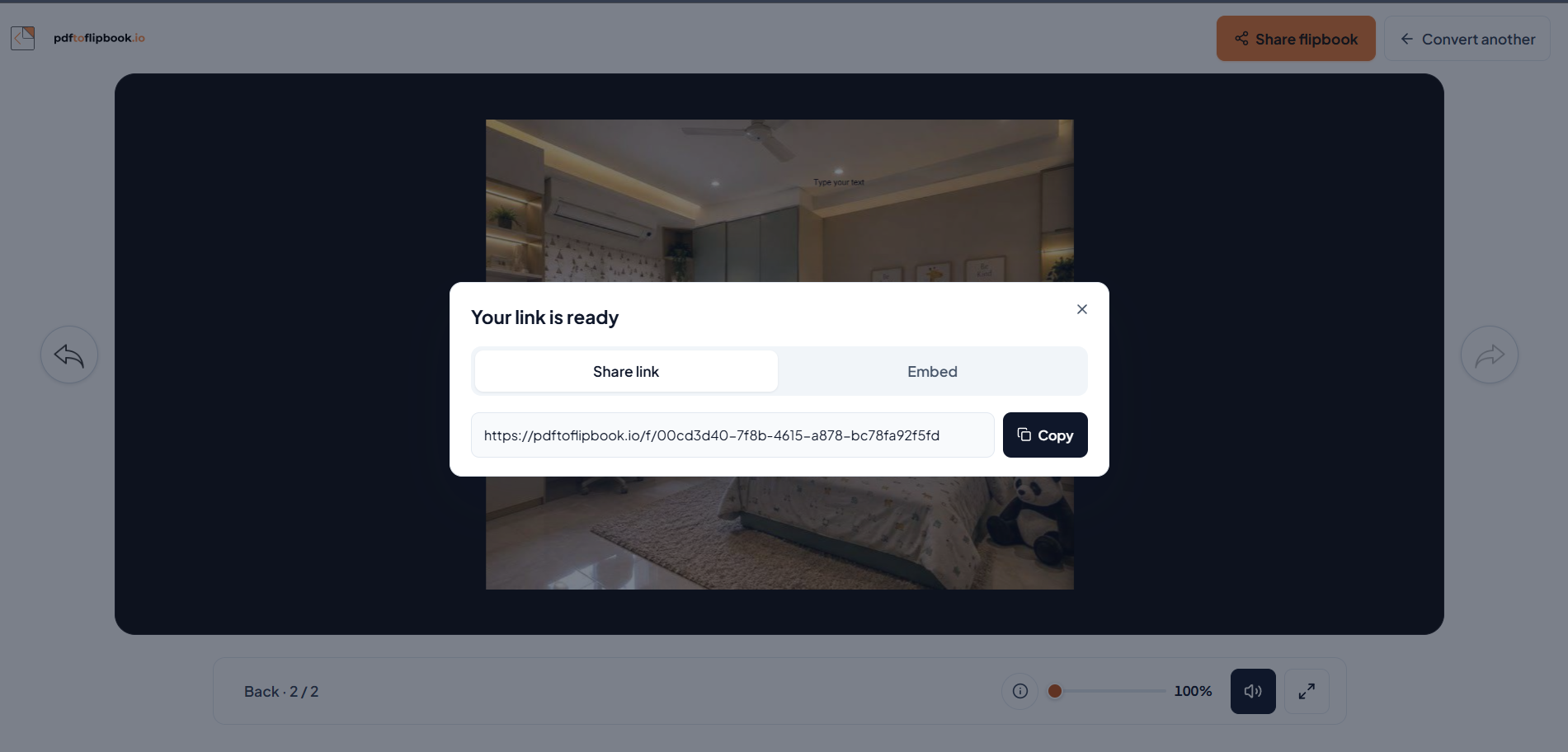
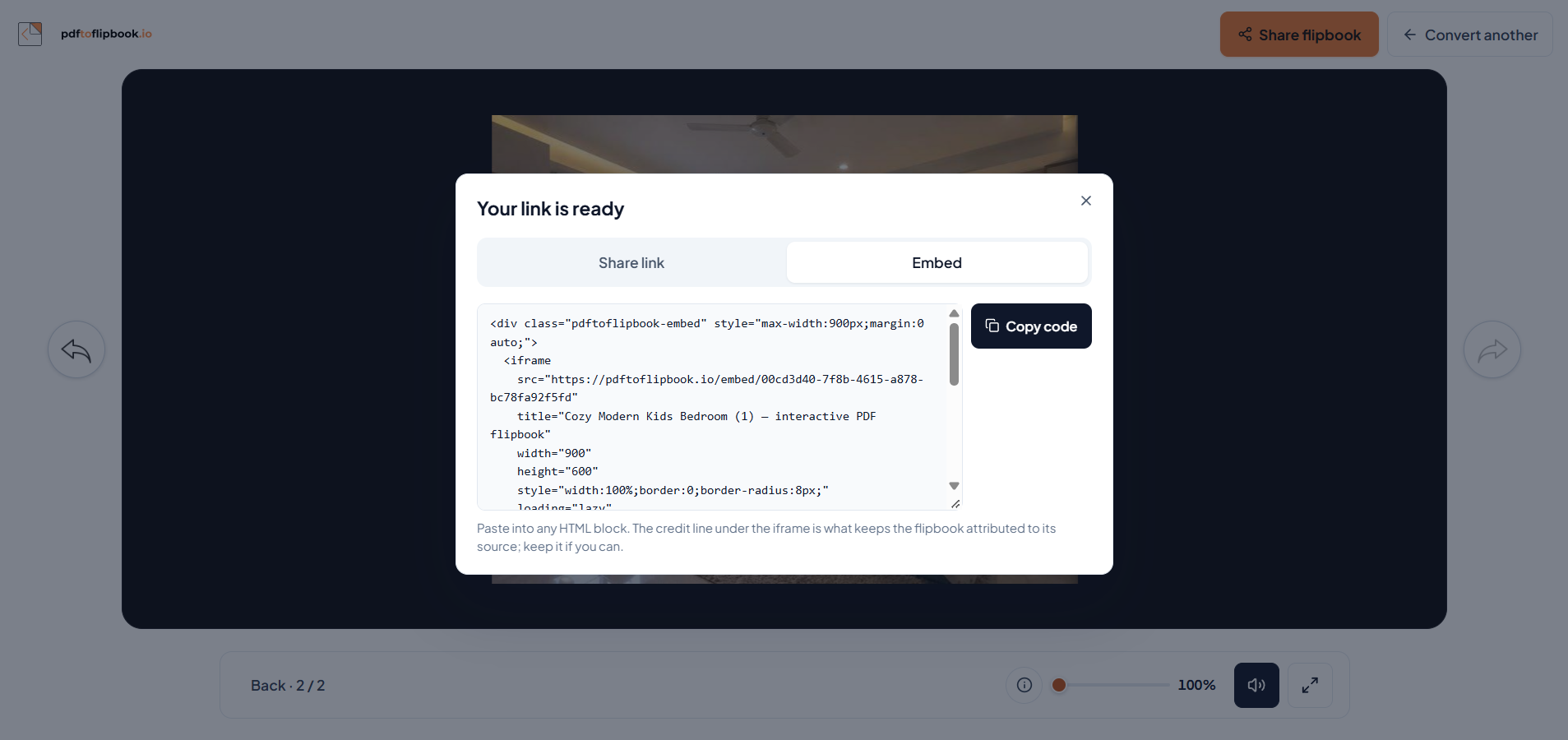
The embed snippet is the other one. Its iframe points at https://pdftoflipbook.io/embed/ and the same id. That address is the one meant to live on a page you control. The copied HTML is a div, the iframe, and a short credit paragraph under the book. Paste all of it. The credit line is how a reader can tell where the book was made. Leave it in.
- Open pdftoflipbook.io and drop the PDF on the page. The preview is drawn in your browser. That preview is not an embed yet.
- Turn a page. If the order or a crop looks wrong, fix the PDF and drop it again. The embed will show whatever you publish.
- Choose Share. When the card opens, it covers the book so the link is the thing in front of you.
- Open the Embed tab. Copy code. That is the snippet. The Share link tab is the address you send in an email. Do not put that address in the iframe.
- Close the card when you have the code. The book is still there. The snippet is on your clipboard.
A guest can share a PDF up to 100 MB. An account reaches 300 MB. Past 300 MB the file is refused, and an account does not lift that ceiling. A password on the PDF is only so the pages can be read at publish time. It does not lock the embed. If the page on your site must ask for a password, put that lock on your site. This Share step does not add one.
WordPress
WordPress keeps raw HTML in a Custom HTML block. The Custom HTML documentation, updated for WordPress 7.0 on 20 May 2026, is the page to trust if a label has moved.
- Edit the post or page. Open the block inserter and add Custom HTML. In an empty paragraph, typing /html and pressing Enter does the same thing.
- In WordPress 7.0, choose Edit HTML, paste the whole snippet, and press Update. On an older block editor, paste into the block itself.
- Preview the page. You should see the book, then the credit line under it. If the frame is empty, you pasted the /f/ link. Go back to the Embed tab and copy again.
- Publish, or update the page if it was already live.
An administrator on a single site can save an iframe. WordPress calls that capability unfiltered_html. A contributor does not have it. On a multisite, only a super admin has it unless someone has granted it. If the iframe disappears when you save, that is the editor stripping the tag, or a security plugin doing the same job. Save the page while logged in as an administrator. If it still vanishes, the host or a plugin is blocking the tag. The WordPress documentation describes that stripping. It is not a fault in the flipbook.
The classic editor is the older screen, the one with a Visual tab and a Text tab. Switch to Text, paste the snippet, switch back to Visual only to look, then update. Stay on Text if Visual rewrites the iframe.
Squarespace
Squarespace has two blocks that look alike. The Embed block is for services that speak oEmbed, which Squarespace documents on its embed blocks page. A flipbook iframe is not one of those. The same help page says that when a pasted embed does not resolve, put the code in a code block instead.
The custom code page, updated 27 August 2026, says adding an iframe in a code block is available on the Core, Plus, and Advanced plans, and on some legacy billing plans. A plan that only allows plain HTML and CSS in a code block will not run this snippet. Check the plan before you spend an afternoon resizing a blank block.
- Edit the page. Add a code block where the book should sit. Do not use the Embed block for this snippet.
- Paste the whole snippet, the div, the iframe, and the credit paragraph.
- Save, then open the published page in a private window. Squarespace says code in a code block may not appear while you are logged in, even when visitors can see it. A blank editor is not proof the embed failed.
- If the private window is also blank, confirm the plan allows iframes in code blocks, and confirm the iframe src starts with https://pdftoflipbook.io/embed/.
Code injection, under Settings, is for a script that belongs on every page, such as analytics. This book belongs on one page. Leave it in the code block on that page. Squarespace also says its support does not cover third-party code, so a layout quirk after a Squarespace update is something you check on the live page, not something their chat will rebuild.
Wix
Wix puts outside HTML in an HTML iframe element. Wix’s own developer docs name the control: Embed code in Wix Studio, Embed HTML in the Wix Editor. Both sit under Add, then Embed code. The Studio article is the current write-up of the limits.
- Open the editor. Choose Add Elements, then Embed Code.
- Add Embed HTML if you are in the Wix Editor, or Embed Code if you are in Studio.
- Choose Code, or Enter Code, and paste the snippet. Choose Apply.
- Drag the element until it is wide enough for two pages. The iframe in the snippet is 600 pixels tall and full width of its box. Give the element at least that height, or the book looks cropped.
- Publish, then look at the live site. Wix says the code must use HTTPS or it will not show on the live site. The snippet already does.
Wix draws that element inside a sandbox. The book does not need to read the rest of your Wix page, so the sandbox is not a problem. Wix also says it does not support code it did not write. If the frame is empty on the live site and the src is the /embed/ address, the usual miss is HTTP, or the element is too short to show the pages. Stretch it, publish again, and look at the live URL rather than only the editor.
A site you wrote yourself
A custom site is a page whose HTML you can edit. That includes a file you wrote, a static host, and a builder that is not one of the three above as long as it has a custom HTML or code embed. The snippet does not change. Only the place you paste it changes.
Open the page template. Find the spot where the book should appear, under the heading you already wrote for it. Paste the snippet there, as a block of HTML, not as a link. Save, deploy the site the way you already deploy it, and open the page over HTTPS. An iframe on an HTTP page is a mixed-content risk, and some browsers will refuse it. The embed address is already HTTPS.
Do not point the iframe at the /f/ address to “make it simpler.” That page refuses to be framed. The src in the copied snippet is the one that loads.
The iframe is 600 pixels tall, width 100 percent of the div, with a maximum width of 900 pixels and the box centered. On a narrow column, 600 pixels of height is a lot of screen. On a wide article column it is enough to turn a page without the book feeling like a strip. If your layout is a narrow sidebar, the book will be cramped. Put it in the main column. allowfullscreen is already on the iframe, so a reader can open the book to the full screen from inside your page.
When you publish a new version of the PDF, Share again. You get a new id. The old snippet still points at the old book. Replace the snippet on the page. There is no dashboard that pushes the new pages into an embed you already pasted.
After it is on the page
Open the live page on a laptop and on a phone. The first page of a multi-page book sits alone. The next view is a pair. On a phone the pair is short if the PDF pages are very wide. That shape is the PDF, not the embed. A tall page reads better on a phone. If the file came from slides, the PowerPoint article covers making the slide portrait before you export.
Click through one turn. The corner, the arrow keys, and a swipe should move the page inside the frame. If the frame is blank and the rest of your page is fine, the src is wrong or the host stripped the iframe. If the frame shows the book but the bottom is cut off, the slot on your page is shorter than 600 pixels. Make the block taller. Do not crop the snippet.
The credit line sits under the iframe, in the same div. If your template’s CSS hides every paragraph, that line can vanish even though the book shows. Check the live page, not only the editor. Leave the line. It is part of what you copied.
Paste the Embed snippet, on the page you already have. The share link is for sending. It will not sit inside the page.